In an era where ChatGPT and Claude dominate the AI landscape, there's a powerful alternative that many people don't know about: running large language models (LLMs) directly on your own computer. With the right tools and suitable hardware, you can run a locally hosted AI assistant without sending each inference request to a model provider.
Why Your Next AI Assistant Should Run Locally
More Control Over Data
Prompts sent to a locally hosted Ollama model remain local to Ollama. They can leave your computer if you select an Ollama cloud model, enable web search, connect Open WebUI to a hosted provider, install networked tools, or expose the local server. Local deployment can reduce third-party data transfer, but it does not automatically protect chats stored on disk or establish compliance with data protection regulations.
For strict local-only Ollama operation, set disable_ollama_cloud in ~/.ollama/server.json, then restart Ollama:
{
  "disable_ollama_cloud": true
}
No Per-Token Provider Bill
Local inference avoids per-token provider charges for locally licensed models. Hardware, electricity, storage, maintenance, backups, and upgrades still have ongoing costs, so it is not accurate to describe local AI as free after setup.
Usage Limited by Your Hardware
Local inference has no external provider message quota, but throughput is limited by your hardware. Ollama queues work when models or accelerators are busy and returns an HTTP 503 response if its configured queue is full.
Customization Freedom - Make It Yours
You can customize system prompts and runtime parameters, import compatible GGUF or Safetensors models, and run multiple models when memory permits. Training or fine-tuning generally requires separate tooling before you import the resulting weights into Ollama.
Offline Capability - Work Anywhere
After Ollama, the selected local model, and any supporting UI models are downloaded, local inference can run offline. Disable cloud features and avoid web search, hosted providers, and networked tools if strict offline behavior is required.
Understanding Model Sizes and Hardware Requirements
Model memory depends on the exact artifact, quantization, context length, parallel requests, and CPU or GPU offloading. Parameter count alone is not enough, and download size is only a lower bound because the runtime and context cache need additional memory.
Use the exact tag in the Ollama library to check artifact size and quantization before downloading. These examples illustrate the range rather than rank model quality:
| Example tag | Download size | Practical guidance | | --- | ---: | --- | | llama3.2:3b | About 2.0 GB | A modest starting point for systems with 8 GB of RAM | | mistral:7b | About 4.4 GB | A Q4 model that benefits from more memory for context and other applications | | gpt-oss:20b | About 14 GB | Designed to run with 16 GB of memory, but additional headroom is useful | | llama3.1:70b | About 43 GB | Plan for roughly 64 GB or more system memory, especially with larger contexts |
A compatible GPU can improve speed, but the model and its context must fit available VRAM for full GPU placement. Ollama can split some models between CPU and GPU memory at lower performance. Long context windows and parallel requests can add substantial memory use even when the model weights fit.
Step-by-Step Installation Guide
Method 1: Ollama (Recommended for Beginners)
Ollama provides native applications and a command-line interface for downloading and running local models.
On Linux, install Ollama with:
curl -fsSL https://ollama.com/install.sh | shOn macOS, download the DMG from ollama.com/download, move Ollama to Applications, and launch it. On Windows, download and run the installer from the same page.
Download your first model by opening your terminal and running:
# A modest 2.0 GB model artifact
ollama pull llama3.2:3b

# A 4.4 GB Q4 model artifact
ollama pull mistral:7b

# A larger reasoning model with a 14 GB artifact
ollama pull gpt-oss:20b
Download time depends on the artifact size and your connection. Leave enough disk space for both the model and future updates.
Start chatting:
ollama run mistral:7bYou'll see a prompt where you can start chatting immediately:
>>> Hello! How are you today?For a browser-based chat experience, install Docker, generate a persistent secret, and run Open WebUI:
export WEBUI_SECRET_KEY="$(openssl rand -hex 32)"

docker run -d -p 127.0.0.1:3000:8080 --add-host=host.docker.internal:host-gateway \
  -v open-webui:/app/backend/data \
  -e WEBUI_SECRET_KEY="$WEBUI_SECRET_KEY" \
  --name open-webui \
  --restart always ghcr.io/open-webui/open-webui:main
Then visit http://localhost:3000 in your browser.
Binding to 127.0.0.1 keeps the first-run administrator setup off untrusted networks. The :main image is a rolling build. Pin a specific Open WebUI version tag when reproducibility matters. Open WebUI can connect to local or hosted providers, so review its connections and enabled tools before using sensitive data.
Method 2: LM Studio (Best for Windows Users)
LM Studio provides a beautiful GUI for managing local LLMs. Download LM Studio from lmstudio.ai, install and launch the application, browse the model library and click download on your chosen model, then once downloaded click "Load Model" to start chatting.
LM Studio advantages: no command line required, visual model management, built-in performance monitoring, and easy model comparison.
Essential Commands and Configuration
# List installed models
ollama ls

# Remove a model
ollama rm llama3.2:3b

# Show model information
ollama show mistral:7b

# Copy a model into your Ollama account namespace
ollama cp mistral:7b your-username/my-custom-model

# Sign in and push it to the Ollama registry
ollama signin
ollama push your-username/my-custom-model
Pushing publishes model data to Ollama rather than keeping it only on your computer. Review the source model's license and do not include private data in a model you publish.
Performance Optimization Tips
Enable GPU Acceleration
Ollama automatically uses a supported NVIDIA GPU when it can. nvidia-smi confirms that the driver can see the GPU; ollama ps confirms where Ollama loaded the model:
# Verify that the NVIDIA driver sees the GPU
nvidia-smi

# Run a model, then check placement from another terminal
ollama run mistral:7b
ollama ps
The PROCESSOR column reports full GPU, full CPU, or split CPU and GPU placement. Consult Ollama's current hardware support matrix because GPU families and minimum driver versions change over time.
On supported Apple M-series Macs, Ollama uses Metal acceleration. On Windows and Linux, Ollama supports listed AMD GPUs through ROCm and supports additional hardware through Vulkan. Vulkan is enabled by default when its backend is installed.
Do not set HSA_OVERRIDE_GFX_VERSION as a routine AMD configuration step. It is an experimental Linux workaround for specific unsupported targets and must match the GPU architecture. Start with the official compatibility table and driver instructions instead.
Adjust Context Window for Speed
Smaller context windows reduce context-cache memory and prompt-processing work. They can improve performance, but they also reduce how much conversation or document history the model can use.
Create a Modelfile with one context setting:
FROM mistral:7b
PARAMETER num_ctx 2048
Then create and run the customized model:
ollama create mistral-2k -f Modelfile
ollama run mistral-2k
For a temporary change in an interactive ollama run session, use:
/set parameter num_ctx 2048Ollama's default context allocation varies with available VRAM. Use ollama ps to inspect the active context and processor placement instead of assuming one universal default.
Use Appropriate Quantization Levels
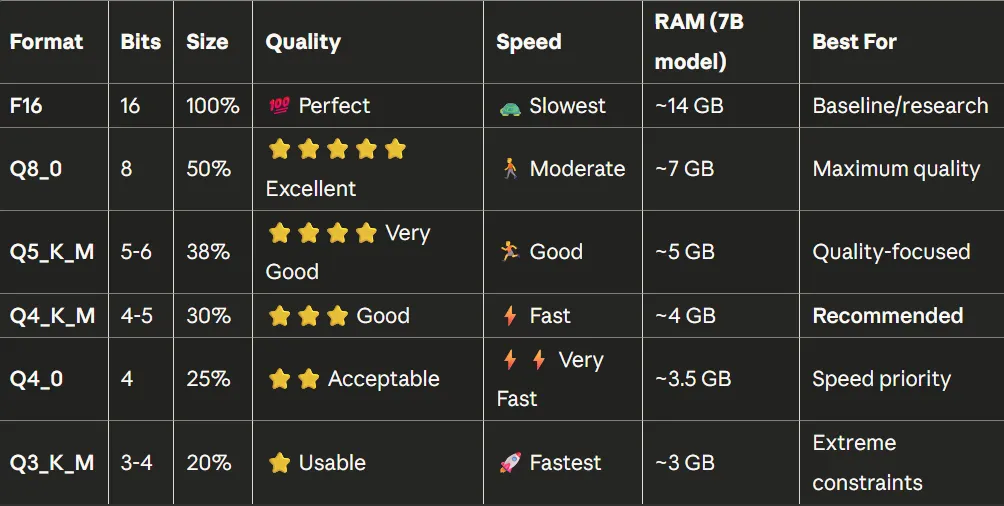
Think of quantization like compressing a high-resolution photo. The original image might be 10MB, but you can compress it to 2MB, and it still looks nearly identical to the human eye. Quantization does the same thing for AI models, but instead of pixels, we're compressing the mathematical weights that make up the model's "brain."
# mistral:7b is already Q4_K_M
ollama pull mistral:7b

# An explicit higher-precision Llama 3.1 instruct tag
ollama pull llama3.1:8b-instruct-q8_0
Higher-precision artifacts such as Q8 or F16 consume more storage and memory than Q4. F16 is not a quantized format.
Monitor System Resources
On Linux/macOS:
# CPU and RAM monitoring
htop

# GPU monitoring (NVIDIA)
watch -n 1 nvidia-smi

# GPU monitoring (AMD)
watch -n 1 rocm-smi
On Windows, use Task Manager (Ctrl+Shift+Esc) or PowerShell:
Get-Process ollamaConfigure Server Environment Variables
These examples apply when you launch ollama serve from the same shell. Desktop applications and Linux system services require setting variables through the operating system or service configuration and then restarting Ollama.
# Cap concurrently loaded models; each must fit available memory
export OLLAMA_MAX_LOADED_MODELS=2

# Allow parallel requests; this increases context-cache memory use
export OLLAMA_NUM_PARALLEL=4

# Set custom model storage location
export OLLAMA_MODELS=/path/to/fast/ssd

# Adjust keep-alive time (seconds models stay in memory)
export OLLAMA_KEEP_ALIVE=300

ollama serve
Increasing concurrency is not automatically an optimization. Required memory grows with parallel requests and context length, and requests are queued when Ollama cannot load another model safely.
Hardware-Specific Optimizations
For systems with limited RAM: choose a smaller artifact, prefer Q4 when it meets your quality needs, use a context window appropriate to the task, and close unnecessary applications.
For systems with sufficient VRAM but limited system RAM: choose a model that fits the GPU, verify placement with ollama ps, and leave memory headroom for the context cache.
For high-end systems: increase model size, precision, context, or concurrency only when the workload benefits and monitoring confirms that the added memory and latency are acceptable.
Local vs Cloud LLMs: When to Use Each
Use local LLMs when reducing third-party data transfer is important, an offline environment is required, predictable local capacity is preferable to per-token billing, or you need direct control over models and prompts. Medical, legal, financial, and other sensitive uses still require security controls, legal or compliance review, appropriate model evaluation, and human oversight. Local hosting alone does not create compliance.
Use hosted LLMs when you need capabilities unavailable on local hardware, managed scaling, collaboration features, mobile access, or reduced operational maintenance. More capable models do not make consequential business decisions safe by themselves; validated workflows and accountable human review remain necessary.
The Hybrid Approach
Route work according to data sensitivity, required capability, latency, cost, and governance. For example, local models can handle low-risk drafts or internal retrieval while approved hosted models handle tasks that need capabilities unavailable locally. Public-facing and consequential outputs require review regardless of where inference runs.
Estimate costs from actual hosted usage, hardware amortization, electricity, storage, maintenance, and support. The break-even point varies substantially by workload.
Final Thoughts
Running useful LLMs locally is now practical on many laptops and workstations. Local inference can improve control and enable offline work, but privacy, speed, output quality, and cost depend on the complete configuration and hardware.
Start with a current model artifact that fits comfortably in available memory, choose a modest context window, and inspect actual CPU or GPU placement with ollama ps. Then evaluate output quality on your own tasks before increasing model size or precision.
Remember: quantization can make larger models accessible, but every deployment still needs deliberate privacy controls, realistic cost accounting, output evaluation, and maintenance.
Your AI journey doesn't have to be cloud-dependent. Take control, run it locally, and have fun!