The landscape of web development has evolved, and modern frontend tools, such as Vite and React, have transformed how we build applications. What if we could use this power for Chrome extensions? Turns out, we can!
In this guide, I'll walk you through creating a lightweight, production-conscious Chrome extension using React, TypeScript, and Vite. Our goal is to maintain simplicity while establishing a robust foundation that can scale based on your project's needs.
Why Vite for Chrome Extensions?
Traditional Chrome extension development often involves complex build processes and limited development tools. Vite gives us fast builds, TypeScript integration, and a familiar React development experience. Hot module replacement works for pages served by Vite, but a Chrome extension loaded from dist/ still needs a watch-and-reload workflow or extension-specific tooling.
Setting Up the Foundation
We begin by scaffolding a fresh Vite project with our preferred stack:
npm create vite@latest chrome-extension-boilerplate -- --template react-ts
cd chrome-extension-boilerplate
npm install
npm install --save-dev @types/chrome
The Vite template gives us a clean TypeScript and React baseline. Adding @types/chrome types the extension APIs used by the popup; the extension manifest and Chrome-specific build details still belong to us.
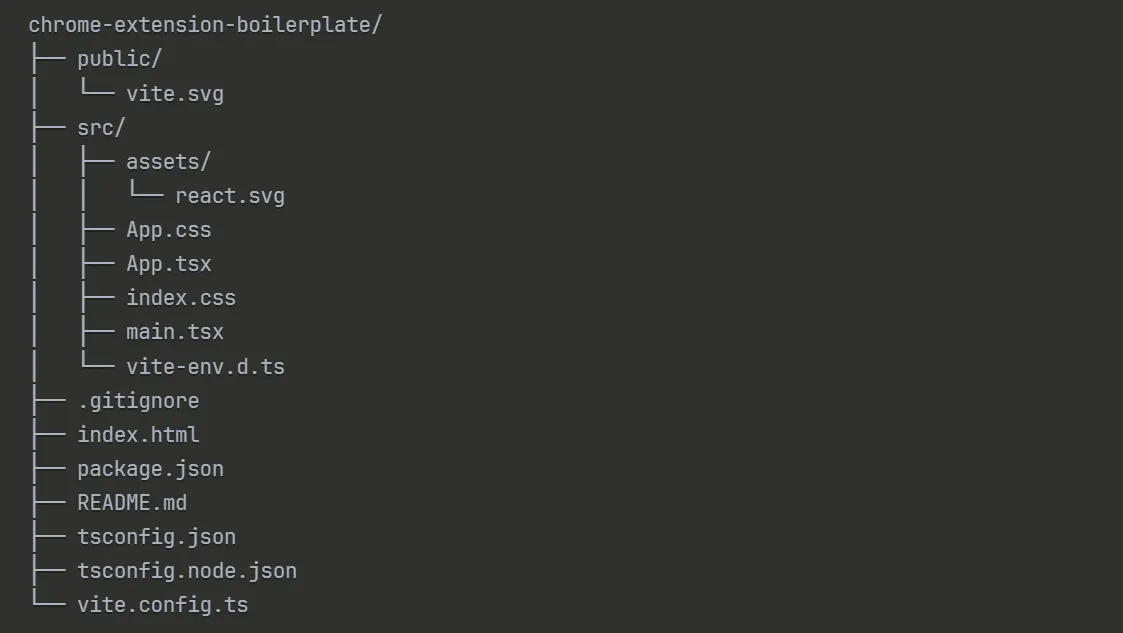
Key files we'll be working with:
- src/App.tsx. Our main React component (the extension pop-up).
- src/main.tsx. React app entry point.
- index.html. The pop-up HTML template.
- public/. Static files that will be copied to the build folder.
- vite.config.ts. Build configuration we'll modify for Chrome compatibility.
Transforming a Web App into a Chrome Extension
The magic happens when we add the Chrome extension manifest. Create a manifest.json file in your public/ directory:
{
  "manifest_version": 3,
  "name": "Chrome extension Boilerplate",
  "version": "1.0",
  "description": "Chrome extension React and Vite Boilerplate",
  "action": {
    "default_popup": "index.html",
    "default_icon": {
      "16": "icon16.png",
      "48": "icon48.png",
      "128": "icon128.png"
    }
  },
  "permissions": [],
  "icons": {
    "16": "icon16.png",
    "48": "icon48.png",
    "128": "icon128.png"
  }
}
This manifest utilizes Manifest V3, Chrome's latest extension standard, which offers enhanced security and improved performance. The configuration sets up a pop-up interface that loads our React application when users click the extension icon.
For the icons, you can generate multiple sizes from a single SVG using Inkscape:
inkscape vite.svg -w 16 -h 16 -o icon16.png
inkscape vite.svg -w 48 -h 48 -o icon48.png
inkscape vite.svg -w 128 -h 128 -o icon128.png
Configuring Vite for Chrome Compatibility
By default, Vite uses the root index.html as its production entry and emits static HTML, JavaScript, CSS, and assets. That already suits this single popup, and Chrome extension pages support ES modules. An explicit input becomes useful when the extension grows to multiple HTML pages, such as a popup and options page:
import { resolve } from 'node:path';
import { defineConfig } from 'vite';
import react from '@vitejs/plugin-react';

export default defineConfig({
  plugins: [react()],
  base: './',
  build: {
    rollupOptions: {
      input: {
        popup: resolve(import.meta.dirname, 'index.html'),
        // options: resolve(import.meta.dirname, 'options.html'),
      },
    },
  },
});
The relative base keeps generated asset URLs portable under the extension's chrome-extension:// origin. Vite's multi-page build accepts additional HTML entries when we need them. Files in public/, including manifest.json, are copied to dist/ unchanged, so they are suitable only for already-runnable assets. TypeScript content scripts and service workers need their own build entries or an extension plugin, plus stable output names that match the manifest.
Crafting a Clean User Interface
The beauty of this approach lies in its simplicity. Our main component in App.tsx can be as straightforward as:
function App() {
  return <h1>Hello World</h1>;
}
export default App;
The corresponding index.html remains minimal and focused:
<!DOCTYPE html>
<html lang="en">
  <head>
    <meta charset="UTF-8" />
    <title>Hello World</title>
  </head>
  <body>
    <div id="root"></div>
    <script type="module" src="/src/main.tsx"></script>
  </body>
</html>
This clean foundation makes it easy to add features without dealing with unnecessary complexity from the start.
Building and Testing Your Extension
The development workflow remains familiar to any React developer. Build your extension for production:
npm run buildLoad it in Chrome by navigating to chrome://extensions, enabling Developer Mode, clicking "Load Unpacked," and selecting your dist/ folder.
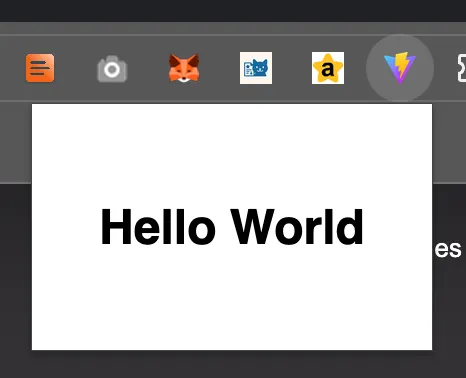
The result is a functional Chrome extension that appears in your browser toolbar, ready to display your React application when clicked.
Beyond the Basics
This minimal setup serves as a launching pad for more sophisticated features. Here's how to extend your React-based Chrome extension with advanced functionality.
Understanding the Chrome Extension Architecture
Your Chrome extension now has multiple components that work together:
- React Pop-up (src/App.tsx). An extension page created when the user opens the action popup and destroyed when it closes.
- Content Scripts (public/content-script.js). Code injected into matching web pages, normally in an isolated JavaScript world while sharing access to the page DOM.
- Extension Service Worker (public/background.js). Event-driven background code that Chrome can stop when idle and restart for later events.
- Manifest (public/manifest.json). Configuration that ties everything together.
Content Scripts for Page Manipulation
Content scripts run alongside matching web pages, separate from the React popup. First, add a static declaration to manifest.json. The matches patterns define the hosts where Chrome may inject this script, so scope them to the sites the feature really needs rather than using <all_urls> automatically:
{
  "content_scripts": [
    {
      "matches": ["https://*/*", "http://*/*"],
      "js": ["content-script.js"]
    }
  ]
}
This static setup does not require scripting. The popup can call chrome.tabs.query() and chrome.tabs.sendMessage() without the broad tabs permission; tabs is needed when reading sensitive Tab properties such as url and title. An alternative is on-demand injection with "permissions": ["activeTab", "scripting"]: activeTab temporarily grants host access after a user gesture, while scripting enables programmatic injection. Chrome's content script documentation covers the static, dynamic, and programmatic options.
Then create public/content-script.js:
// This runs on each matching webpage
console.log('Content script loaded on:', window.location.href);

// Listen for messages from your React popup
chrome.runtime.onMessage.addListener((request, sender, sendResponse) => {
  if (request.action === "highlightLinks") {
    const links = document.querySelectorAll('a');
    links.forEach(link => {
      link.style.backgroundColor = '#ffeb3b';
      link.style.padding = '2px 4px';
    });
    sendResponse({success: true, linksFound: links.length});
  }

  if (request.action === "getPageInfo") {
    sendResponse({
      title: document.title,
      url: window.location.href,
      linkCount: document.querySelectorAll('a').length
    });
  }
});
Then connect your React app (src/App.tsx):
import { useState } from 'react';

interface PageInfo {
  title: string;
  url: string;
  linkCount: number;
}

interface HighlightLinksResponse {
  success: boolean;
  linksFound: number;
}

async function getActiveTabId(): Promise<number> {
  const [tab] = await chrome.tabs.query({ active: true, currentWindow: true });
  if (tab?.id === undefined) {
    throw new Error('No active tab is available.');
  }

  return tab.id;
}

function App() {
  const [pageInfo, setPageInfo] = useState<PageInfo | null>(null);
  const [status, setStatus] = useState('');

  const highlightLinks = async (): Promise<void> => {
    try {
      const tabId = await getActiveTabId();
      const response = (await chrome.tabs.sendMessage(tabId, {
        action: 'highlightLinks',
      })) as HighlightLinksResponse;

      if (response.success) {
        setStatus(`Highlighted ${response.linksFound} links!`);
      }
    } catch {
      setStatus('This page does not allow the extension content script.');
    }
  };

  const getPageInfo = async (): Promise<void> => {
    try {
      const tabId = await getActiveTabId();
      const response = (await chrome.tabs.sendMessage(tabId, {
        action: 'getPageInfo',
      })) as PageInfo;
      setPageInfo(response);
    } catch {
      setStatus('Page information is not available on this tab.');
    }
  };

  return (
    <div style={{ padding: '20px', minWidth: '300px' }}>
      <h1>Chrome Extension</h1>

      <button onClick={highlightLinks} style={{ margin: '5px' }}>
        Highlight Links
      </button>

      <button onClick={getPageInfo} style={{ margin: '5px' }}>
        Get Page Info
      </button>

      {status && <p>{status}</p>}

      {pageInfo && (
        <div style={{ marginTop: '10px', padding: '10px', background: '#f5f5f5' }}>
          <h3>Page Information:</h3>
          <p><strong>Title:</strong> {pageInfo.title}</p>
          <p><strong>URL:</strong> {pageInfo.url}</p>
          <p><strong>Links:</strong> {pageInfo.linkCount}</p>
        </div>
      )}
    </div>
  );
}
export default App;
Background Services for Event-Driven Functionality
Manifest V3 background code runs as an extension service worker. It handles events independently of the popup, but it is not persistent: Chrome may terminate it after inactivity and revive it for a later event. Store durable state in chrome.storage rather than global variables, as described in Chrome's service worker lifecycle guide. First, update manifest.json:
{
  "background": {
    "service_worker": "background.js"
  },
  "permissions": ["storage"]
}
Here, storage is required for chrome.storage. We deliberately avoid a passive tabs.onUpdated listener: silently recording every visited URL turns a tutorial feature into browsing-history collection. The popup sends a page to the worker only when the user chooses to save it. A published extension should still disclose what it stores and provide a clear way to delete it.
Then create public/background.js:
const HISTORY_KEY = 'visits';
const MAX_VISITS = 10;
let historyUpdate = Promise.resolve();

function isVisit(value) {
  return (
    typeof value === 'object' &&
    value !== null &&
    typeof value.url === 'string' &&
    typeof value.title === 'string' &&
    typeof value.timestamp === 'number'
  );
}

function queueHistoryUpdate(update) {
  const nextUpdate = historyUpdate.then(update, update);
  historyUpdate = nextUpdate.catch(() => {});
  return nextUpdate;
}

chrome.runtime.onMessage.addListener((request, _sender, sendResponse) => {
  if (request.action === 'saveVisit' && isVisit(request.visit)) {
    queueHistoryUpdate(async () => {
      const result = await chrome.storage.local.get({ [HISTORY_KEY]: [] });
      const visits = Array.isArray(result[HISTORY_KEY])
        ? result[HISTORY_KEY].filter(isVisit)
        : [];
      await chrome.storage.local.set({
        [HISTORY_KEY]: [request.visit, ...visits].slice(0, MAX_VISITS),
      });
    })
      .then(() => sendResponse({ saved: true }))
      .catch(() => sendResponse({ saved: false }));
    return true;
  }

  if (request.action === 'getVisitHistory') {
    historyUpdate
      .then(() => chrome.storage.local.get({ [HISTORY_KEY]: [] }))
      .then((result) => {
        const visits = Array.isArray(result[HISTORY_KEY])
          ? result[HISTORY_KEY].filter(isVisit)
          : [];
        sendResponse({ visits });
      })
      .catch(() => sendResponse({ visits: [] }));
    return true;
  }

  if (request.action === 'clearVisitHistory') {
    queueHistoryUpdate(() => chrome.storage.local.remove(HISTORY_KEY))
      .then(() => sendResponse({ cleared: true }))
      .catch(() => sendResponse({ cleared: false }));
    return true;
  }

  return false;
});
Without the literal true, the message channel can close before the asynchronous sendResponse() call runs. Chrome's message passing documentation explains this callback contract.
Then access background data in your React app:
// Add this to your App component
interface Visit {
  url: string;
  title: string;
  timestamp: number;
}

interface VisitHistoryResponse {
  visits: Visit[];
}

interface SaveVisitResponse {
  saved: boolean;
}

interface ClearHistoryResponse {
  cleared: boolean;
}

const [visits, setVisits] = useState<Visit[]>([]);

const saveCurrentPage = async (): Promise<void> => {
  if (!pageInfo) return;
  try {
    const response = (await chrome.runtime.sendMessage({
      action: 'saveVisit',
      visit: {
        url: pageInfo.url,
        title: pageInfo.title,
        timestamp: Date.now(),
      },
    })) as SaveVisitResponse;
    setStatus(response.saved ? 'Page saved.' : 'Chrome could not save this page.');
  } catch {
    setStatus('The background worker did not respond.');
  }
};

const loadHistory = async (): Promise<void> => {
  try {
    const response = (await chrome.runtime.sendMessage({
      action: 'getVisitHistory',
    })) as VisitHistoryResponse;
    setVisits(response.visits);
  } catch {
    setStatus('Chrome could not load saved pages.');
  }
};

const clearHistory = async (): Promise<void> => {
  try {
    const response = (await chrome.runtime.sendMessage({
      action: 'clearVisitHistory',
    })) as ClearHistoryResponse;
    if (response.cleared) setVisits([]);
  } catch {
    setStatus('The background worker did not respond.');
  }
};

// Add this button to your JSX
<button onClick={saveCurrentPage} disabled={!pageInfo} style={{ margin: '5px' }}>
  Save Current Page
</button>

<button onClick={loadHistory} style={{ margin: '5px' }}>
  View History
</button>

<button onClick={clearHistory} disabled={!visits.length} style={{ margin: '5px' }}>
  Clear History
</button>

{visits.length > 0 && (
  <div style={{ marginTop: '10px' }}>
    <h3>Recent Visits:</h3>
    {visits.map((visit) => (
      <div key={visit.timestamp} style={{ fontSize: '12px', margin: '5px 0' }}>
        <strong>{visit.title ?? visit.url}</strong><br/>
        <span style={{ color: '#666' }}>{new Date(visit.timestamp).toLocaleString()}</span>
      </div>
    ))}
  </div>
)}
The Complete Flow
Here's how everything connects: The user clicks a button in the React pop-up (App.tsx). React sends a message using chrome.tabs.sendMessage() or chrome.runtime.sendMessage(). The content script or background script receives the message and performs an action. The script sends a response back to the React pop-up. React updates the UI based on the response.
Your file structure now looks like this:
chrome-extension-boilerplate/
├── dist/                          # Built extension (after npm run build)
├── public/
│   ├── manifest.json             # Extension configuration
│   ├── background.js             # Background service worker
│   ├── content-script.js         # Injected into web pages
│   └── icon16.png, icon48.png, icon128.png
├── src/
│   ├── App.tsx                   # React popup UI
│   ├── main.tsx                  # React entry point
│   └── ...
└── ...
The modern toolchain we've established handles the complexity, allowing you to focus on building features while maintaining a clean separation between your React UI and Chrome extension functionality.
The combination of React's component architecture, TypeScript's type safety, and Vite's development experience creates an environment where Chrome extension development feels as natural as building any modern web application.
FAQ
- Can I build a Chrome extension with React and Vite? Yes. Vite builds the React popup and extension files into
dist/, which you load into Chrome as an unpacked extension. - Does hot module replacement work in a Chrome extension? Only for pages served by Vite. An extension loaded from
dist/still needs a watch-and-reload workflow or extension-specific tooling. - What is the background script in Manifest V3? An extension service worker. It handles events independently of the popup but is not persistent, so durable state belongs in
chrome.storage, not global variables. - What are the main parts of a Chrome extension? The popup, content scripts injected into matching pages, the extension service worker, and the manifest that ties them together.
Moving Forward
With just a few tweaks to a standard Vite React project, we built a minimal, functional Chrome Extension with a modern dev workflow. This setup is a solid starting point for adding more advanced features, such as content scripts, background services, messaging, and beyond.
The companion repository validates the generated Manifest V3 package in CI. Run npm run verify locally to lint, type-check, build, and execute the package smoke test.
If you'd like to use or contribute, check out the ARG Software Chrome Extension React and Vite Boilerplate.